 Spectrion
Spectrion is a personal AI agent for iPhone, iPad, and Mac. It chats, uses tools, works with files and projects, automates tasks, remembers useful context, and creates working artifacts: documents, diagrams, tables, plans, and reports.
This page describes the current iOS and macOS versions of Spectrion. It is based on the current Apple targets and does not rely on older README files.
Screenshots
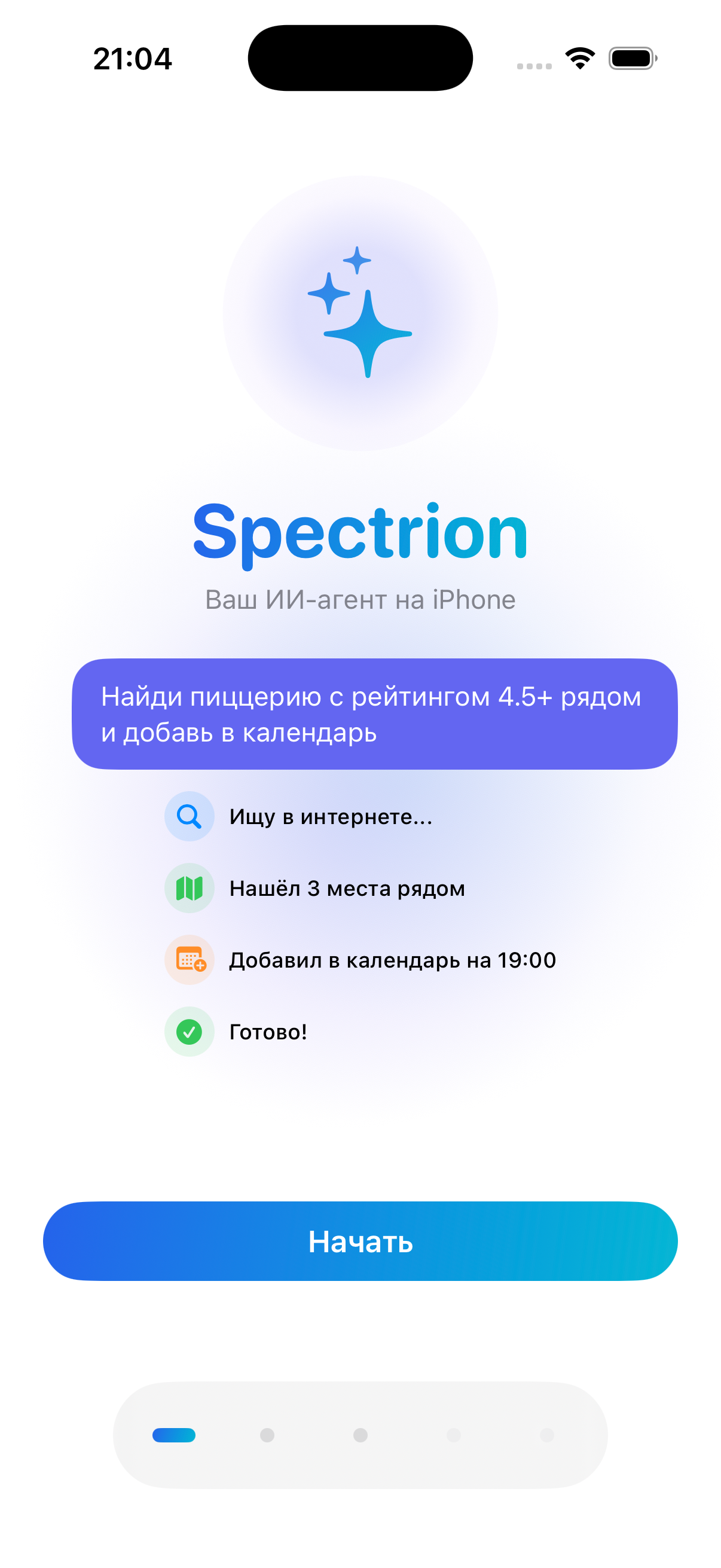
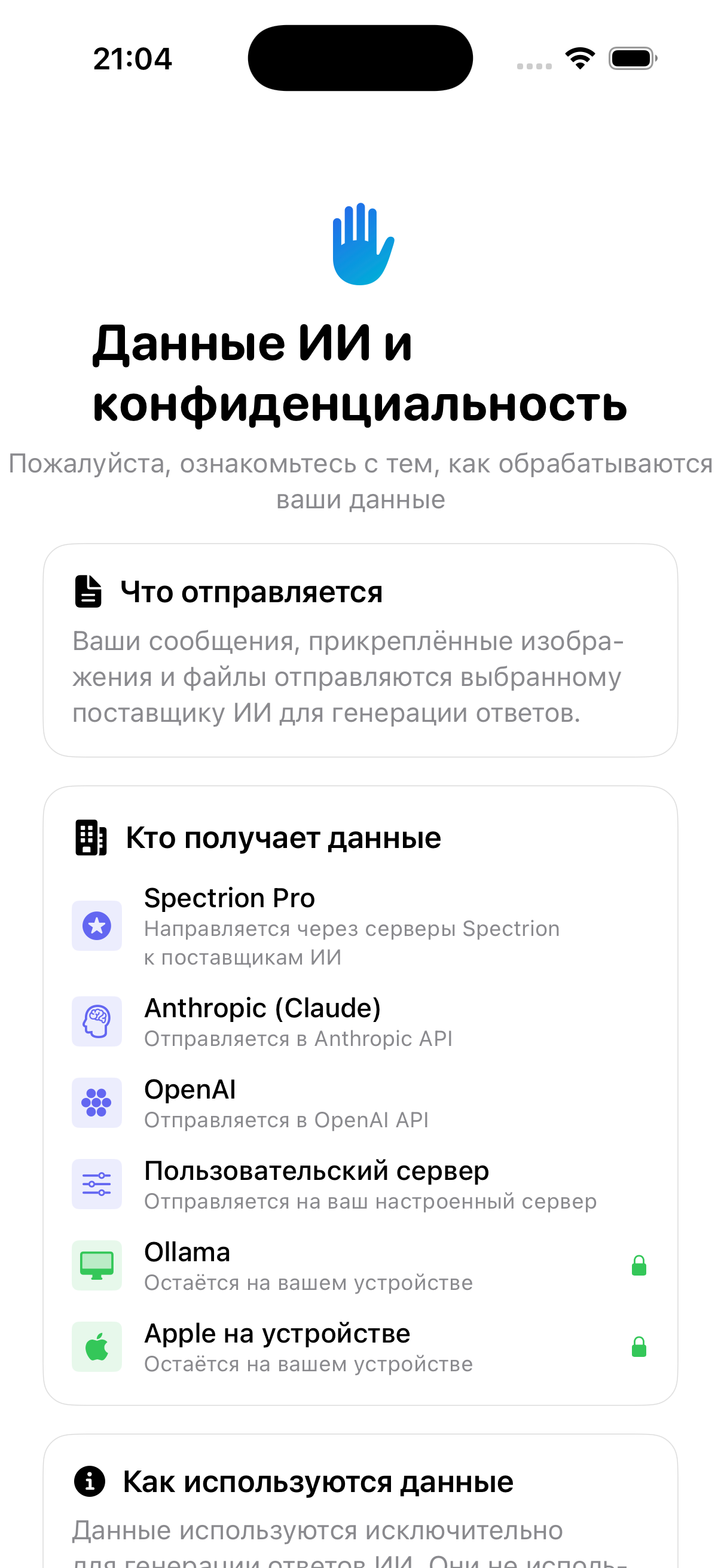
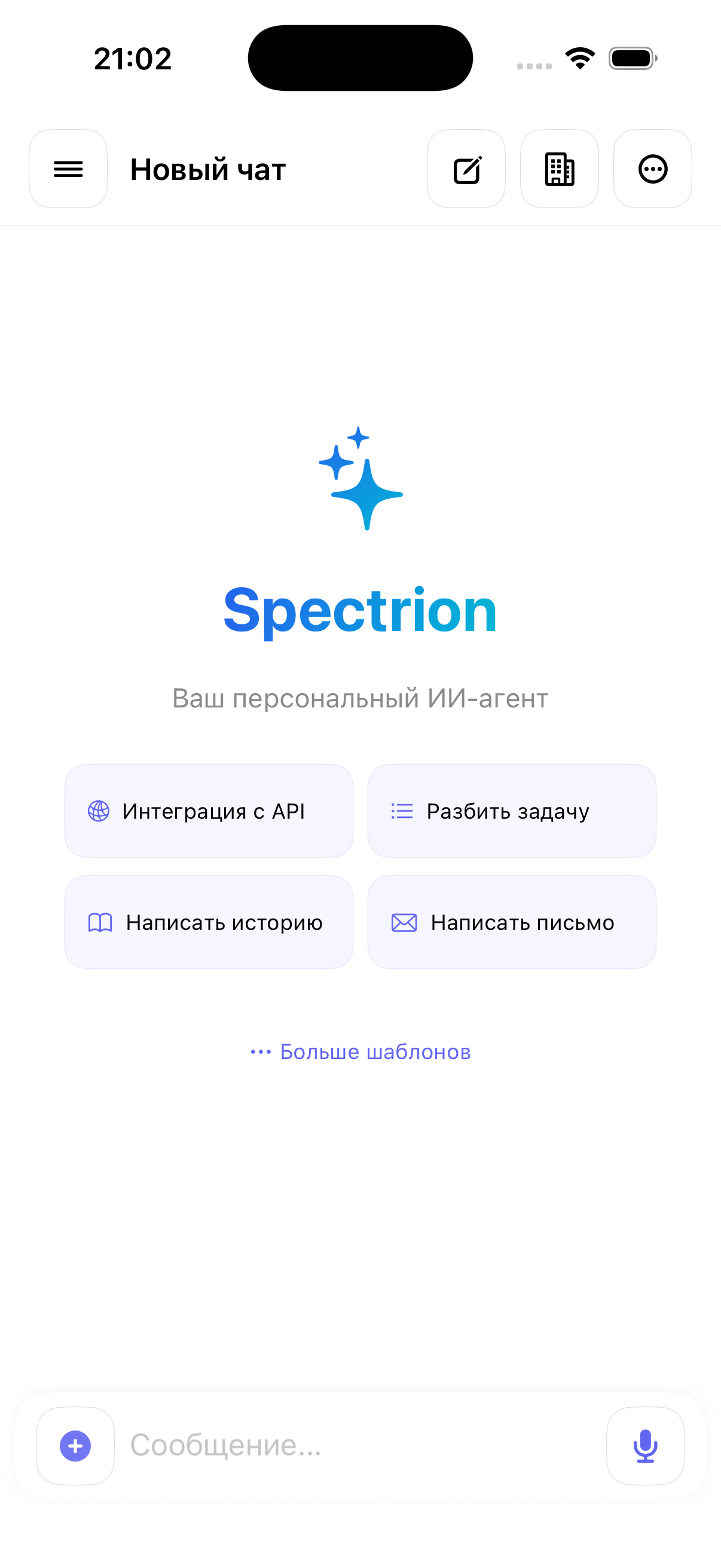
macOS screenshots should be captured in a clean test account before publication to avoid exposing local conversations.
What you can do
Spectrion helps with everyday and professional work:
- Chat with an agent using text, voice, images, and files.
- Research topics on the web and get answers with sources.
- Work with documents: summarize PDFs, extract requirements, create notes, and write reports.
- Plan tasks, manage todos, create reminders, and add calendar events.
- Automate recurring work with Shortcuts, scheduled tasks, workflows, and channels.
- Work with Mac projects: read files, search code, inspect git changes, and prepare patches.
- Create artifacts: documents, diagrams, tables, task reports, and exports.
- Use memory so Spectrion can remember preferences, project context, and prior decisions.
Quick start
- Open Spectrion and finish onboarding.
- Choose a model provider: Spectrion Pro, OpenAI, Anthropic, Custom, Ollama, or Apple on-device when available.
- Send your first request in chat.
- Attach a file, image, or URL if you want Spectrion to work with content.
- Grant only the permissions needed for the current task.
- For Mac projects, attach a project folder.
- For recurring tasks, use Scheduled Tasks, Shortcuts, or workflows.
First run
When you open Spectrion for the first time, the app starts with onboarding. The onboarding explains the agent through practical examples, such as finding a nearby pizzeria rated 4.5+ and adding dinner to your calendar.
After onboarding, Spectrion shows an AI data consent screen. This screen explains:
- What is sent: your messages plus attached images and files are sent to the selected AI provider to generate responses.
- Who receives data: Spectrion Pro routes through Spectrion servers to AI providers; Anthropic and OpenAI send to their APIs; custom servers send to your configured endpoint; Ollama and Apple on-device providers stay local where supported.
- How data is used: for generating AI responses, not for unrelated app behavior.
- What you control: you can choose providers, use local providers, manage memory, clear data, and revoke features.
Spectrion may also ask for system permissions depending on what you use. Notifications, microphone, camera, calendar, reminders, contacts, location, photos, Siri, screen recording, and accessibility are requested only when the related feature needs them.
User control
Spectrion does not ask for every permission at once. The app requests permissions when a feature actually needs them.
For sensitive actions, Spectrion shows approval cards. You can approve, cancel, or change the action.
You can:
- choose the model provider;
- use local providers where supported;
- disable tools and capabilities;
- clear memory and data;
- manage permissions in OS settings;
- use workspace limits on macOS;
- enable or disable background tasks;
- review what Spectrion wants to save to memory.
How Spectrion works with data
Spectrion runs requests through the user-selected AI provider and enabled tools. Depending on the task, data may be processed locally on the device, sent to the selected AI provider, or sent to an explicitly configured external service.
Short rule:
- Local means the work happens inside the app or on your device without sending the request content to an external service.
- Network means Spectrion sends part of the request, file, text, diagram, or result to a selected server, model provider, or external tool.
- Spectrion should not use network tools or external renderer/server integrations without the relevant configuration, permission, or approval where required.
Examples:
| Action | Where it is processed |
|---|---|
| Render a Mermaid diagram in the local renderer | Local, no network |
| Request to OpenAI or Anthropic | Through the selected provider API |
| Request through Spectrion Pro | Through Spectrion infrastructure and selected AI providers |
| Ollama | Local or local network, depending on your Ollama setup |
| Apple on-device models | Local, when the feature is available on the device and OS |
| Public diagram renderer | External network; should be off by default |
| Self-hosted renderer | Network, but to user- or organization-controlled infrastructure |
Providers and models
Spectrion separates the app experience from the AI provider. You can start with Spectrion Pro or configure your own provider.
| Provider | Typical use | Notes |
|---|---|---|
| Spectrion Pro | Managed hosted access | Uses your signed-in Spectrion account and routes requests through Spectrion infrastructure. |
| Anthropic | Claude models | Requires an API key stored in Keychain. |
| OpenAI | GPT models | Requires an API key stored in Keychain. |
| Custom | OpenAI-compatible APIs | You provide endpoint, model, and key. |
| Ollama | Local models | Requires a local Ollama server and installed models. |
| Apple on-device | Local Apple models | Available only on supported OS and hardware. |
The model picker and catalog track model name, provider, context window, tool support, vision support, reasoning support, aliases, and deprecation state. Some tools also depend on capability providers, such as image analysis, speech, or text-to-speech.
Chat basics
Chat is the primary workspace.
On iOS, the main chat includes:
- A header with sidebar, canvas, new chat, business workspace, chat actions, and active agent controls.
- A scrollable transcript with user messages, assistant responses, tool results, approvals, plan cards, memory approvals, task status, and generated UI artifacts.
- A composer with text input, file and media attachment buttons, voice entry, templates, replies, drafts, and slash commands.
- Sheets for settings, provider setup, knowledge base, templates, chat export, task board, subagent inbox, scheduled tasks, memory dashboard, canvas, and channels.
On macOS, the main chat includes:
- A split view with a sidebar and active conversation.
- Toolbar and menu commands for new chat, search, model switching, stop, retry, clear, export, copy last response, find, canvas, floating panel, and sidebar toggle.
- Drag and drop attachments, image attachments, voice input, message history navigation, replies, and intermediate output.
- Optional project folder context and Project Inspector for coding or file-heavy work.
Sending messages
Type a request and send it. On macOS, Shift+Return inserts a newline. The agent can stream a response, call tools, ask for approval, show intermediate progress, and continue with follow-up work.
Attachments
Spectrion supports text, images, documents, PDFs, Office files, CSV-like data, audio, video, camera input, and file paths. File parsing and multimodal formatting depend on the selected provider and enabled tools.
Voice
You can speak to Spectrion from the composer or a voice overlay. Voice features include speech recognition, speech synthesis, wake word settings, server or local TTS, saved voices, and voice cloning/deletion where configured.
Templates
The template picker provides starter prompts for productivity, creativity, research, code, communication, and fun. Examples include API integration, breaking down a task, writing a story, writing an email, and more.
Chat organization
The sidebar groups conversations into pinned chats, folders, Today, Yesterday, and Earlier. You can search chats and messages, create folders, open branches, pin conversations, start a new chat, and move between conversations.
What you see during work
When Spectrion runs a task, it can show:
- current status;
- action plan;
- intermediate results;
- tool calls;
- approval cards;
- memory approval cards;
- created files and artifacts;
- errors and retries;
- final evidence.
For larger tasks, Spectrion can show progress directly in chat, on a task board, or in a dedicated execution card.
Artifacts
Some Spectrion results are saved as artifacts. An artifact is a result you can return to later, open, export, attach to a task, or change.
Examples:
| Type | Example |
|---|---|
| Diagram Artifact | Workflow, architecture, or bug-flow diagram |
| Document Artifact | Report, PRD, summary, proposal, runbook |
| Table Artifact | Comparison table, decision matrix, requirements list |
| Run Trace | Agent execution history |
| Evidence Bundle | Files and results that prove task completion |
| Code Patch | Project changes, diff, test output, and summary |
Artifacts help Spectrion finish tasks with concrete working results, not just text.
Diagram artifacts
Spectrion can turn plans, architecture, workflows, task dependencies, bug reports, and project flows into editable diagrams.
A Spectrion diagram is not just an image. It is a persistent artifact:
- diagram source file;
- rendered SVG;
- PNG preview;
- diagram_id;
- version;
- link to a conversation or task;
- ability to change the diagram later by command.
Example:
- Ask: "Show the agent runtime loop with approvals and tool execution."
- Spectrion creates Mermaid source.
- The source is validated and rendered locally.
- The app saves source, SVG, and PNG preview.
- Later you can say: "Add the memory step before the final answer."
Spectrion updates the existing diagram, creates a new version, and shows the updated preview.
The MVP uses Mermaid as a local renderer without network access. This means the diagram text is not sent to a public renderer. More advanced engines such as PlantUML, GraphViz, D2, Structurizr, or Vega can use a configured or self-hosted renderer if the user or administrator explicitly enables that capability.
Plans, tasks, and subagents
For larger requests, Spectrion can create a structured plan. Plans can include phases, tasks, dependencies, assumptions, risks, open questions, revisions, and success criteria. The app can show the plan in the chat and execute it step by step.
Subagents let Spectrion delegate bounded work. A subagent can research, implement, inspect, or verify a specific part of a task. Subagents run with limits, isolated workspaces where configured, timeouts, and restricted tool access. Their results return to the main conversation.
The task board and todo tools make multi-step work visible. You can ask Spectrion to track tasks, update progress, and summarize what remains.
Memory and knowledge
Memory is designed to help Spectrion remember useful user preferences, project context, constraints, and prior decisions. The runtime includes:
- Conversation recall.
- Long-term memory.
- Semantic memory.
- Memory approval routing.
- Sensitive data checks.
- PII and secret redaction.
- Memory dashboard.
- Knowledge base ingestion and retrieval.
You can clear memory and related data from settings. Sensitive memories may require approval before being saved.
Dry run
For sensitive tasks, you can ask Spectrion to do a dry run first.
Dry run shows what the agent plans to do, which tools it would use, which data it would read, which files it would change, and where approval would be required. In dry run mode, Spectrion does not perform side-effect actions.
Example:
"First do a dry run: how would you clean this project folder?"
Spectrion shows the plan, risks, required permissions, and expected changes. You can then change the plan or approve execution.
Run trace and evidence
For complex tasks, Spectrion can save a run trace: a compact execution history.
- original request;
- plan;
- approvals;
- tool calls;
- errors and retries;
- created artifacts;
- final result.
Run trace helps explain what the agent did and why the task is considered complete.
For some tasks, Spectrion can assemble an evidence bundle: documents, diagrams, logs, patches, summaries, and other artifacts that prove the result.
Approvals and safety
Spectrion can ask for approval before actions that read sensitive data, change device state, or send information outside the current local context.
Examples:
- modify a file;
- run a shell command;
- apply a patch;
- change calendar or reminders;
- send an email or message;
- save memory;
- use contacts;
- start background automation;
- send data to an external tool, renderer, or provider;
- run an action that is hard to undo.
The approval card shows what Spectrion wants to do, what data will be used, what result is expected, and whether the action can be reverted.
Subagents have additional restrictions. They cannot directly message the user, change core configuration, save memory, schedule background work, manage plugins, manage MCP, delegate again, or use user-facing tools unless explicitly allowed by the runtime.
Managed policy can disable providers, hide tools, block background tasks, restrict workspace access, or enforce business rules.
iOS features
Main iPhone and iPad app
The iOS app is optimized around a single conversation screen with quick access to sidebar, canvas, new chat, templates, model/provider controls, and settings. It can process attachments from Photos, camera, Files, audio, video, and cloud sources.
Settings
iOS settings support Simple and Advanced modes.
Simple mode focuses on common sections: providers, subscription, personalization, extensions, store, capabilities, voice, uploaded files, language, diagnostics, and data controls.
Advanced mode exposes more agent surfaces: capability providers, evolution, usage, morning briefing, scheduled tasks, workflows, proactive tools, memory dashboard, subagent inbox, task board, device mesh, channels, wake word, legal, and stewardship activity.
Share Extension
From the iOS share sheet, you can send text, URLs, and images into Spectrion. Shared content is stored through the app group and routed back into the app with a deep link.
Widgets, Live Activities, and Watch
The iOS target includes a widget extension, Live Activity support, and a Watch connectivity bridge. These surfaces let Spectrion expose quick status, shortcuts, and cross-device interactions outside the main app.
Siri, Shortcuts, and App Intents
Spectrion exposes intents for asking the agent, searching the web, starting a new chat, checking schedule, setting reminders, sending quick messages, and toggling features. These can appear in Siri, Shortcuts, Spotlight, widgets, and other App Intents surfaces.
Background work
The iOS app registers background processing, remote notifications, audio background mode, scheduled tasks, proactive alerts, morning briefing, heartbeat work, and push handling. Background behavior depends on iOS permissions, battery policy, Focus settings, and managed policy.
macOS features
Main app
The macOS app launches as Spectrion and uses a native SwiftUI app shell with:
- Main window.
- Separate chat windows.
- Workflows window.
- Settings window.
- Menu bar extra.
- Floating quick panel.
- Native commands and Services.
If onboarding is incomplete, the app opens Mac onboarding. Otherwise it opens the main split-view chat.
Sidebar
The macOS sidebar supports search, pinned chats, folders, Today, Yesterday, Earlier, new folder, settings, and new chat.
Menu commands
The menu system exposes fast actions:
- New Chat.
- Close Window and Close Chat.
- Quick Search.
- Focus Input.
- Find.
- Toggle Sidebar.
- Open Canvas.
- Toggle Floating Panel.
- Stop and Retry.
- Switch Model.
- Clear Chat.
- Export Conversation.
- Copy Last Response.
Menu bar and floating panel
The menu bar extra gives quick access to Spectrion without opening the full window. The floating panel is built for quick prompts such as "Ask Spectrion..." and can hand work back to the main chat.
macOS Services
The app registers Services for selected text and content, including ask, summarize, and translate style workflows. Services let you invoke Spectrion from other Mac apps.
Project Workspace
Each macOS conversation can attach a project folder. Once attached, the agent can reason over that folder and the Project Inspector becomes available.
The Project Inspector includes:
- Files: browse, open, edit, and save project files.
- Search: search within the project.
- Changes: inspect git branch, status, diffs, stage, unstage, commit, history, and rollback.
- Journal: review project activity and context.
Workspace-aware tools restrict file and shell operations to the selected workspace where appropriate.
macOS permissions
Some desktop features need explicit macOS permissions:
- Accessibility for UI automation.
- Screen Recording for screenshots and screen capture.
- Microphone for voice input.
- Camera for image capture.
- Contacts, Calendar, Reminders, and Location for personal information management.
- Browser control permissions or CDP setup for browser automation.
The permissions settings screen shows what is required and links users to the relevant system settings.
Capabilities
Spectrion registers a large tool catalog. The exact set can vary by platform, plan, provider, and policy.
| Area | What Spectrion can do |
|---|---|
| Web and research | Search the web, fetch pages, run deep research, inspect links, and summarize findings. |
| Personal information | Read or write calendar events, reminders, contacts, notes, email, notifications, and scheduled tasks when permission is granted. |
| Location and context | Use maps, weather, date/time, geofences, device info, and Focus state. |
| Files and documents | Manage files, cloud files, PDFs, Office documents, ZIP archives, CSV-like data, and knowledge base documents. |
| Media | Analyze images, use camera, record audio, use TTS, work with Music, and share content. |
| Agent work | Create plans, execute plans, manage tasks and todos, delegate to subagents, spawn sessions, and track progress. |
| Memory | Save useful facts, recall conversation history, build semantic memory, request memory approval, and show a memory dashboard. |
| UI and artifacts | Render canvas output, generated UI, diagrams, tool result cards, plan cards, and exports. |
| Automation | Run workflows, scheduled tasks, shortcuts, proactive tools, channels, Focus automation, and remote CLI or mesh transfer. |
| macOS coding | Run shell commands, inspect files, use git, apply patches, use Docker sandboxing, automate browsers, and capture screens. |
| Extensions | Load scripted tools, MCP tools, plugins, store items, and project tools. |
Feature availability
| Feature | iOS/iPadOS | macOS | Permission needed | External connection needed |
|---|---|---|---|---|
| Chat | Yes | Yes | No | Model provider required |
| Voice input | Yes | Yes | Microphone | May depend on speech provider |
| Files | Yes | Yes | File access | No, if processed locally |
| Calendar/Reminders | Yes | Yes | Calendar/Reminders | No |
| Share Sheet | Yes | No | App extension access | No |
| Widgets/Live Activities | Yes | No | Notifications for some scenarios | No |
| Project Workspace | Limited | Yes | Folder access | No |
| Shell commands | No or limited | Yes | Approval/policy | No |
| Git tools | No or limited | Yes | Workspace access | No |
| Screen capture | Limited | Yes | Screen Recording | No |
| Browser automation | No or limited | Yes | Browser/control permissions | May depend on setup |
| Diagram Artifacts | Yes | Yes | No | No for local Mermaid |
| PlantUML/GraphViz/D2 renderer | Yes, if configured | Yes, if configured | Approval/policy | Yes, if renderer is remote/self-hosted |
Example prompts
- "Summarize this PDF and extract the project requirements."
- "Build a workflow diagram for this process."
- "Find conflicting calendar events this week."
- "Build a morning briefing: calendar, reminders, weather, and top 3 priorities."
- "Review this project folder for risky changes."
- "Create a bug report from this screenshot."
- "Create a task plan and track progress in the task board."
- "Remember these project constraints, but first show what you will save."
- "Do a dry run before changing files."
Example scenarios
1. Find dinner and add it to Calendar
Goal: find a nearby pizzeria rated 4.5+ and add dinner to the calendar.
Steps:
- Ask: "Find a pizzeria rated 4.5+ nearby and add it to my calendar at 19:00."
- Spectrion searches/maps nearby places and may ask for location permission.
- It proposes a place, uses Calendar after approval, and confirms the event.
What you see: search progress, map/place result, calendar approval, and final confirmation.
2. Summarize a PDF and remember the constraints
Goal: turn a document into reusable project context.
Steps:
- Attach a PDF or share it into Spectrion.
- Ask: "Summarize this and remember the requirements for this project."
- Spectrion parses the document, summarizes it, and asks for memory approval if it wants to save persistent facts.
What you see: document summary, extracted requirements, memory approval card, and future recall in related chats.
3. Build a morning briefing
Goal: get a daily briefing with calendar, reminders, weather, and priority tasks.
Steps:
- Open Settings and enable Morning Briefing or scheduled tasks.
- Grant Calendar, Reminders, Weather/Location, and Notifications as needed.
- Configure time and content.
What you see: scheduled task entry, notification delivery, and a generated briefing in chat.
4. Research a topic with citations
Goal: produce a compact research report.
Steps:
- Ask: "Research the latest changes in this market and give me sources."
- Spectrion uses web search, web fetch, and deep research.
- For broad tasks, it can create a plan or delegate subtopics to subagents.
What you see: research steps, source summaries, final report, and optional exported conversation.
5. Use the Mac Project Workspace for code review
Goal: review a local codebase.
Steps:
- On macOS, attach a project folder to the conversation.
- Ask: "Review this project for risky changes and missing tests."
- Spectrion reads files, searches code, inspects git status, and may use shell/git tools after approval.
What you see: project context, findings with file references, git status/diff cards, and proposed next steps.
6. Fix a file on Mac with approval
Goal: make a small code change.
Steps:
- Attach the project folder.
- Ask for the exact change.
- Spectrion uses file, shell, git, and apply-patch tools inside the workspace.
- You approve sensitive operations.
What you see: planned edit, patch/tool result, verification command output, and a final change summary.
7. Capture or inspect the Mac screen
Goal: ask Spectrion to reason about an app window.
Steps:
- Grant Screen Recording and, for UI control, Accessibility.
- Ask Spectrion to capture or inspect the screen.
- The agent uses screen capture, browser automation, or AppleScript tools depending on the task.
What you see: permission guidance if missing, captured context, and a response grounded in the visible UI.
8. Use Share Sheet from iPhone
Goal: send content from another iOS app.
Steps:
- Tap Share on a web page, image, or selected text.
- Choose Spectrion.
- Spectrion opens or deep-links into a conversation with the shared content attached.
What you see: the shared URL, text, or image in the composer/chat, ready for summarization or follow-up.
9. Ask from Siri or Shortcuts
Goal: use Spectrion without opening the app first.
Steps:
- Add a Spectrion shortcut or use an exposed App Intent.
- Run actions such as Ask, Search Web, New Chat, Check Schedule, Set Reminder, Quick Message, or Toggle Feature.
- Continue in the app when the result needs full context.
What you see: Siri/Shortcuts result and an optional conversation handoff.
10. Automate a recurring task
Goal: run an agent task on a schedule.
Steps:
- Open Scheduled Tasks or ask Spectrion to create one.
- Define prompt, schedule, permissions, and notification behavior.
- Spectrion runs through background task, cron-style scheduling, or proactive queue when allowed.
What you see: task entry, next run time, execution result, and notification or chat update.
Practical limits
Some capabilities depend not only on Spectrion, but also on platform rules, the selected provider, and permissions.
- iOS can limit background work. Scheduled tasks and proactive alerts may not run at the exact requested minute.
- Some actions require system permissions: microphone, camera, calendar, contacts, files, location, screen recording, or accessibility.
- Local models are available only when the device, OS, and selected provider support them.
- Agent tools depend on the selected model provider. Not every model supports tools, vision, reasoning, or large contexts equally well.
- macOS project tools work best with a selected project folder so Spectrion operates inside a limited workspace.
- Shell, browser automation, AppleScript, and file modifications may require approval or be disabled by policy.
- Remote/self-hosted tools may send data through the network and must be configured explicitly.
- Some features appear only in Advanced settings.
Terms
Local - data is processed inside the app, on the device, or in an explicitly local user environment. For a local operation, Spectrion does not send request content to an external service.
Network - Spectrion makes a request to a server, API, model, renderer, MCP/tool server, or another endpoint. This may be a public service, Spectrion Pro, a model provider, a local network server, or self-hosted infrastructure.
Model provider - the service or local system that generates AI responses. Examples: Spectrion Pro, OpenAI, Anthropic, Ollama, Apple on-device models.
Renderer - a component that turns source description into a visual result. For example, Mermaid source becomes an SVG or PNG diagram.
Self-hosted - a service that the user or organization runs and controls.
Approval - explicit user confirmation before a sensitive action: writing a file, running a shell command, changing the calendar, sending a message, saving memory, or sending data to an external tool.